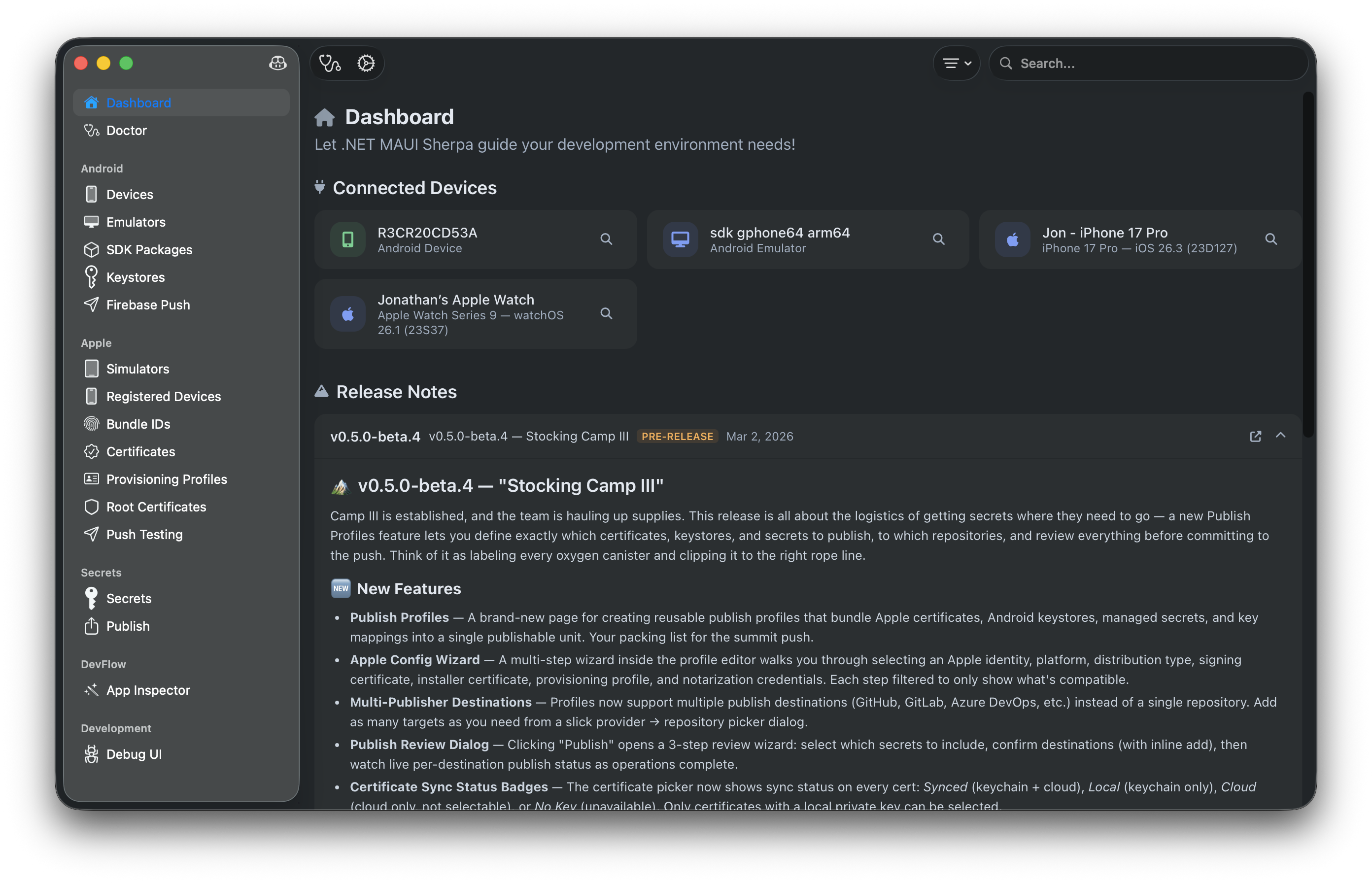
macOS Installation
Option 1: Homebrew (Recommended)
Install via the MAUI Sherpa Homebrew tap for easy updates:
brew tap --trust redth/tap
brew install --cask maui-sherpa
To update to the latest version:
brew upgrade --cask maui-sherpa
Option 2: Direct Download
Download the universal macOS build (supports both Apple Silicon and Intel):
Download MAUI-Sherpa.macos.zip
Requires macOS 14.0 (Sonoma) or later.
First Launch
Since MAUI Sherpa is distributed outside the App Store, macOS may show a security warning on first launch.
Right-click the app → Open, then click "Open" in the dialog. You only need to do this once.
Windows Installation
Download the self-contained build for your architecture:
Requires Windows 10 19041 or later. Self-contained — no .NET runtime needed.
Windows Install
Extract the .zip to a folder of your choice (e.g., C:\Tools\MauiSherpa) and run MAUI Sherpa.exe.
Optionally, create a shortcut to pin it to your taskbar.
Linux Installation
MAUI Sherpa is available in multiple package formats for Linux. Choose what works best for your distribution:
AppImage (Universal)
Works on any Linux distribution. Download, make executable, and run:
chmod +x MAUI.Sherpa-*.AppImage
./MAUI.Sherpa-*.AppImage
Debian/Ubuntu (.deb)
sudo dpkg -i mauisherpa_*.deb
Flatpak
flatpak install codes.redth.mauisherpa.flatpak
All Linux Downloads
Available for x64 and arm64 architectures. Requires GTK4 runtime.